| Understanding Series |
Installing Microsoft Script Runtime ActiveX control—data file access
Topic status automatically displays here - do not remove.
 Bookmark this topic
 Print this topic
When using Microsoft (MS) Internet Explorer (IE), the first time you try to access the XML data store, you will be blocked by IE security. It will prompt you with a Security Warning designed to inform you that the website you are viewing is attempting to access your computer file system. This notification is good, because you don't want to let any website have access to your computer file system. The warning will look like this at the top of the page:
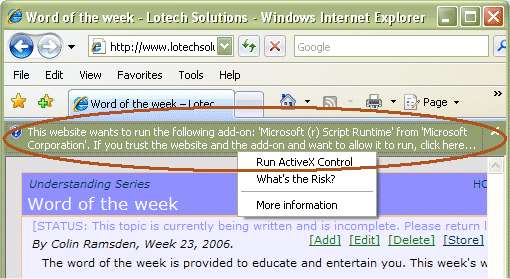
MS IE security prompt ribbon bar notifying you that the website is attempting to access the computer file system, and needs to install the 'Microsoft Script Runtime' ActiveX control.
You might be tempted to click the ribbon bar and select an option, however, you should NOT do so just yet.
BEFOREHAND, you must customise the IE security settings for this site. In this way, you don't compromise your browser security. It's a trust issue. You need to tell IE that it's OK to trust this website, and its file access needs.
To customise the IE security settings for this website local file access
- In IE, select Tools | Internet Options, and click the Security tab.
- Select the Trusted sites zone
(located in the top icon section labelled
"Select a zone to view or change security settings") as illustrated below: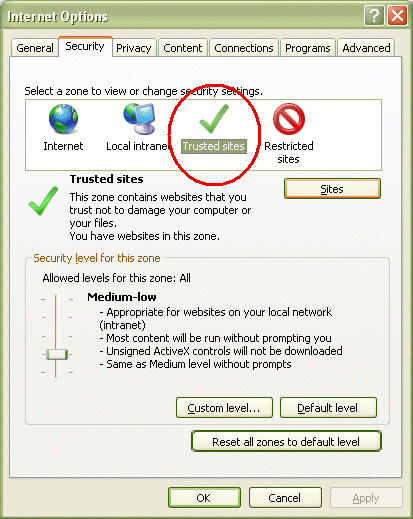
The MS IE Internet Options Security tab with Trusted sites zone selected.
It's the icon with the big green tick mark. - Click the Sites button.
This shows the Trusted sites list: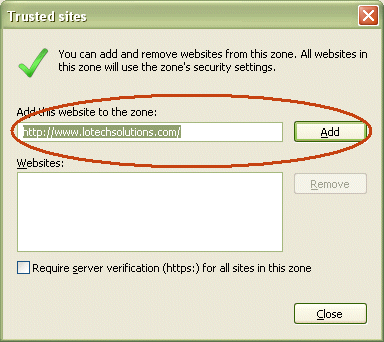
Adding LotechSolutions.com to the MS IE Internet Options Trusted sites list
- If not already shown in the Websites list, or in the field labelled "Add this website to the zone", enter "http://www.lotechsolutions.com" and please be careful about the spelling if you manually type it in. Case doesn't matter much, but spelling absolutely does.
- Click the Add button, and click
Close.
This adds the site to the IE trusted sites list, and returns you to the IE Internet Options Security tab, with "Trusted sites" still selected:
MS Internet IE Options dialog
with Security Trusted Sites Custom level selected - Click the Custom Level button.
This shows the Custom Level Properties dialog:
MS IE Security Settings Dialog Trusted Sites
enable ActiveX Controls marked as not safe - Scroll down to the "ActiveX controls and plug-ins" section,
and in the "Initialize and script ActiveX controls not marked as
safe for scripting" option, select the
Enable option, as illustrated above.
By way of explanation, the file access ActiveX control is a MS control, which they provide for file access from web pages. Why they haven't marked it as safe for scripting, is beyond my understanding. It's installed with every MS Windows OS, so there's nothing to download. IE just has to know that you give it permission to access your local file system.
IE will prompt you to confirm this security change setting.
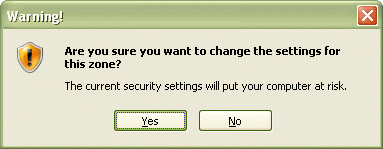
- Click Yes.
This will return you to the IE Internet Options. Click OK.
Click on the ribbon bar and select "Run ActiveX Control" from the popup menu. This will display the MS IE Security Warning dialog:

MS IE Security Warning dialog
Click "Run" to download and install the data store ActiveX control. To have it work once installed, you also need to customise the IE security settings for this site.
See Also
 Lotech Solutions' Tips,
Tricks, and Procedures
Lotech Solutions' Tips,
Tricks, and Procedures

 email webmaster
© Copyright Lotech Solutions. All rights reserved.