| PageNameGoesHere |
BenQ LCD TV Framemaker Template Instructions
Topic status automatically displays here - do not remove.
 Bookmark this topic
 Print this topic
 Using FrameMaker (FM) to efficiently produce
consistent looking documents is an acquired skill, but nevertheless,
one that be learned by any writer willing to try. It only requires an
attitude of consistency in your work practices.
Using FrameMaker (FM) to efficiently produce
consistent looking documents is an acquired skill, but nevertheless,
one that be learned by any writer willing to try. It only requires an
attitude of consistency in your work practices.
To produce consistent looking documents, you must use the same formatting on all of the documents that you want to have look the same as each other. FM does provide the tools to achieve this, using master templates and catalogs.
You are already using the principle of templates whenever you take an existing FM document and clone it (resave it under a different name). Cloning a document brings along all the formatting required to accurately reproduce the document including page size, page layout, page margins, page backgrounds, column details, paragraph formatting, table formatting, character formatting, color schemes, numbering properties, and PDF settings.
The key to producing consistent looking documents in FM is to never, ever, ever, apply any formatting directly to any part of the document, and only ever apply a predefined format from the master page formatting catalogs.
Unfortunately, FM by default provides all the tools to break formatting consistency at the click of a button. You need only accidentally click the Bold button on the Formatting Bar and the paragraph formatting has been customised with an inline format. Inline formatting overrides any catalog formatting, so stays with the document. Over a short period of time, inline formatting applied in this manner will accumulate into an unworkable mess.
It requires a constant awareness of FM's potential behaviour to break consistency, and an alertness by the writer to maintain consistency between documents. Quite simply, don't ever use inline formatting—only apply predefined catalog formats. There's even one for bolding characters.
There are some easy things you can do in FM to minimise the potential for inconsistency, and to maximise the potential for success:
- In FM, remove the Formatting button bar. Select View | Formatting Bar.
- In FM, remove the QuickAccess button bar. Select View | QuickAccess Bar.
This removes the temptation to click the button bars which apply an inline format directly to the text.
The BenQ LCD TV VA series UM
Whilst editing the User Manual (UM) for the BenQ LCD TV VA series, I removed all of the inline formatting, and created a new set of paragraph and character formats for the documents. There were originally 11 character formats, and 77 paragraph formats as listed below:
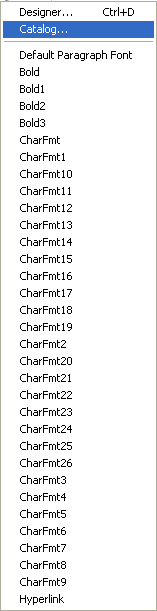
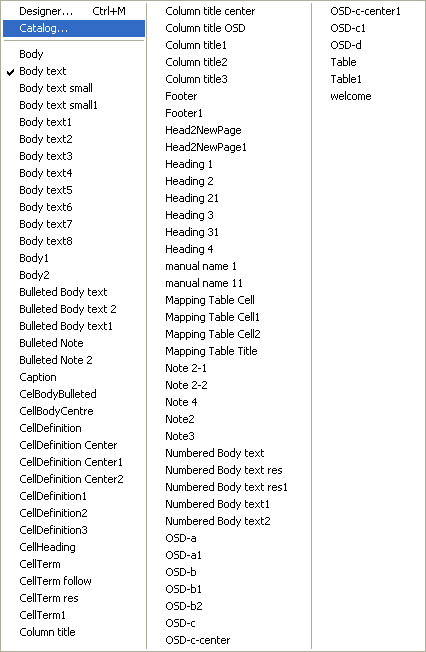
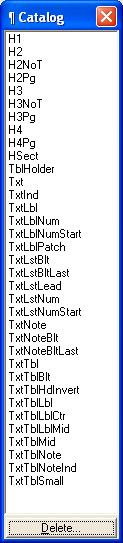
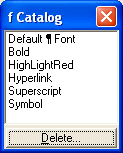
Several of the formats are duplicated, as evidenced by the use of the same name prefix. I was subsequently able to reduce this count down to 5 character formats and 35 paragraph formats as listed below right:
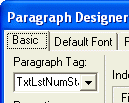 So
that these formats could be seen within the narrow 11 character FM format
selection lists, as shown in the Paragraph Designer illustrated at left,
I devised an abbreviation naming scheme using up to three characters
for each descriptive criteria. For example:
So
that these formats could be seen within the narrow 11 character FM format
selection lists, as shown in the Paragraph Designer illustrated at left,
I devised an abbreviation naming scheme using up to three characters
for each descriptive criteria. For example:
H is for headings, H1, H2, H3 and H4.
NoT means the heading is not to be included in the TOC (No TOC), and Pg means the heading starts on a new page.
Many of these formats are necessary to overcome the idiosyncrasies of FM behaviour. For example, forcing a heading to the top of a new page requires a separate heading format, even though all other properties are the same.
The restart of a numbered list requires different formatting than the other numbered list items, as do lists within tables compared with lists outside of tables.
The following table is a full list of formats created for the VA series:
| Catalog name | Description | Usage |
|---|---|---|
| H1 | Heading level 1 | Section heading |
| H2 | Heading level 2 | Topic heading level 2 |
| H2NoT | Heading level 2 No TOC | Topic heading level 2 which doesn't differ too much from previous heading and warrant its own separate TOC entry |
| H2Pg | Heading level 2 next page | Topic heading level 2 which displays at the top of the next page |
| H3 | Heading level 3 | Sub-topic heading level 3 |
| H4 | Heading level 4 | Item or procedure heading level 4 |
| H4Pg | Heading level 4 next page | Item or procedure heading level 4 which displays at the top of the next page |
| HSect | ||
| TblHolder | ||
| Txt | Text paragraph | |
| TxtInd | Text indented paragraph | |
| TxtLbl | Text label |
Procedure Title
-
Step 2.
Paragraph within a procedure.
Indented paragraph within a procedure.
-
Step 3.
Note within a procedure
Use Alert paragraphs as needed.
- Step 4.
If there is something else a user should do after finishing the procedure, explain that in the last paragraph.
See Also
Lotech Solutions' Tips, Tricks, and Procedures

 email webmaster
Copyright Lotech Solutions. All rights reserved.